
← All addons

ForeverVoice
Proximity voice chat for your guild or your party in World of Warcraft: Forever.
Overview
Walk into a zone, cross a guildmate on the road, and just talk to them. Questing with friends? Same thing with your party. ForeverVoice turns Blizzard's built-in voice chat into proximity voice: you hear the players close to you, their voice fades as they walk away, and they go silent once they are out of range.
No external program, no Discord, no server to host: ForeverVoice uses the game's own voice chat and only changes how loud each player is. No libraries, no dependencies.
Key features
- Guild, Party or Auto mode (the guild, else the party), switched in one click
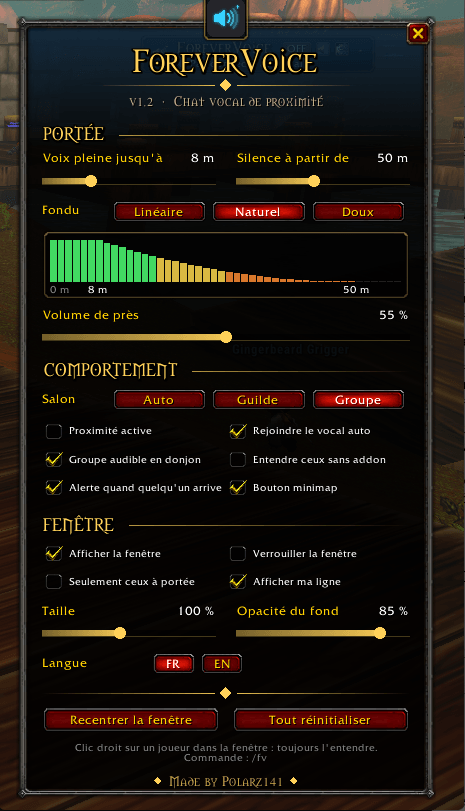
- Proximity volume: full voice up to a distance you choose, then a fade, then silence, with a live graph of the curve
- Adjustable volume up close, so nobody saturates when standing next to you
- "X is in voice range" alert with a sound and a message
- Group stays audible in dungeons and battlegrounds, where positions are hidden
- Right-click a player to always hear them, whatever the distance
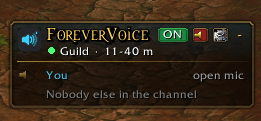
- Voice window: who is talking, how far each player is and how loud you hear them
- Minimap button listing the players in range, with a halo while someone talks
- English and French interface
- Safe: only volumes change, never the Blizzard mute. Everyone goes back to full volume when you turn it off, leave voice or log out
Screenshots

Commands & controls
| Command | What it does |
|---|---|
/fv | Show / hide the window |
/fv options | Open the options menu |
/fv on / /fv off | Proximity on / off |
/fv join / /fv leave | Join / leave voice |
/fv join guild / /fv join group | Switch to guild or group voice |
/fv range 40 8 | Silent from 40 yards, full voice up to 8 yards |
/fv debug | Status, handy for bug reports |
Minimap: left / right / middle click | Options / proximity on-off / join-leave voice. Shift + click shows the window |
Good to know
Everyone needs the addon. A player without ForeverVoice doesn't share their position and is heard at normal volume. Ask your guild and your friends to install it!
Because of a Forever beta bug, addon settings are not read back after a relog. ForeverVoice keeps a backup in one account macro named "ForeverVoice". Keep it: it does nothing when clicked, and it is recreated if deleted.
Installation
- Download the addon from CurseForge.
- Close the game, then extract
ForeverVoiceintoWorld of Warcraft\<Forever folder>\Interface\AddOns. - In the game settings, turn on Voice Chat and set your microphone and talk mode (push-to-talk or open mic).
- Launch the game and make sure the addon is enabled in the AddOns list.
- Open its options with
/fv options.